 Store by Yosef Ashenafi

jterm
A fast terminal with tabs and split panes, plus a file tree, editor and Git when you need them.
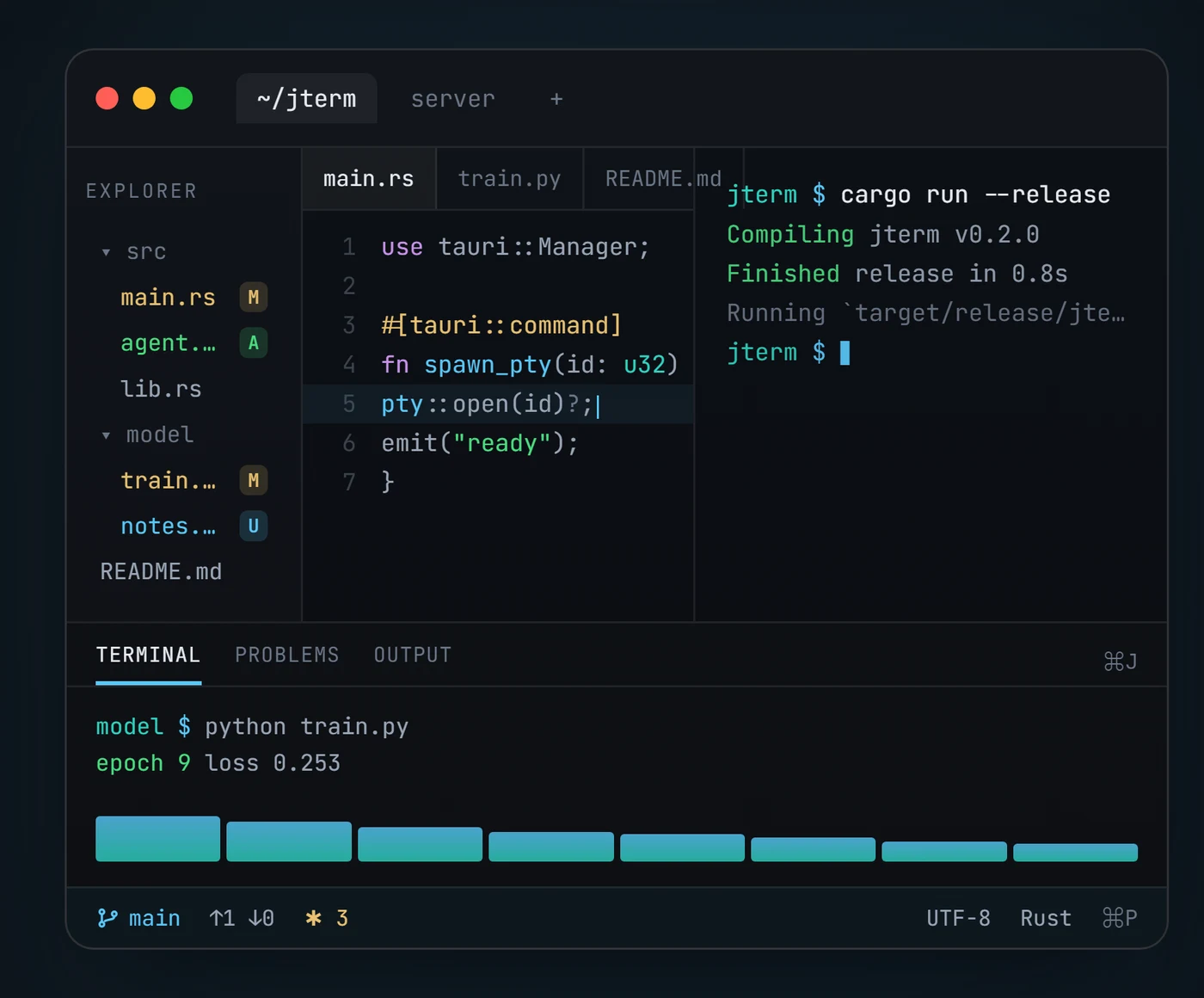
The file tree, editor and terminals in one window. From the jterm website.
What it does
- Tabs and split panesSplit left and right or top and bottom, as deep as you like, and drag the dividers. Each pane is its own shell.
- A real terminalPowerShell by default, and Command Prompt, Git Bash or WSL run too. Mouse clicks and scrolling work in full-screen programs.
- File treeOpen a folder to browse it. Double-click a folder to go there in the terminal; click a file to open it.
- Editor and searchEdit files with syntax colours, preview Markdown, and search every file in the folder without the window freezing.
- Git built inSee what changed, stage, commit and push, or publish a new repository to GitHub.
- Picks up where you left offClose it or restart your PC: your tabs, open files and unsaved edits come back.
How to install
- On your Windows PC, click Download from GitHub. Under Assets, click the file ending in x64-setup.exe.
- Open it from your Downloads folder. If Windows says "Windows protected your PC", click More info, then Run anyway. It shows this for apps downloaded from the internet.
- Click Next, then Install, then Finish. No administrator password needed.
jterm is then in your Start menu.
Handy shortcuts
| Ctrl+Shift+T | New tab |
| Ctrl+Shift+D / E | Split side by side / top and bottom |
| Ctrl+Shift+B | Show or hide the file tree |
| Ctrl+Shift+P | Open a file by name |
| Ctrl+Shift+C / V | Copy and paste in the terminal |
Plain Ctrl+C still stops a running command, as in any terminal.
Good to know
- Shell
- PowerShell 7 if you have it, otherwise Windows PowerShell
- Needs
- Windows 10 or 11 with Microsoft Edge WebView2 (built in; the installer adds it if missing)
- Uninstall
- Settings > Apps > Installed apps > jterm
- Mac or Linux
- Downloads on GitHub
- Source code
- Open source on GitHub (MIT)