 Store by Yosef Ashenafi

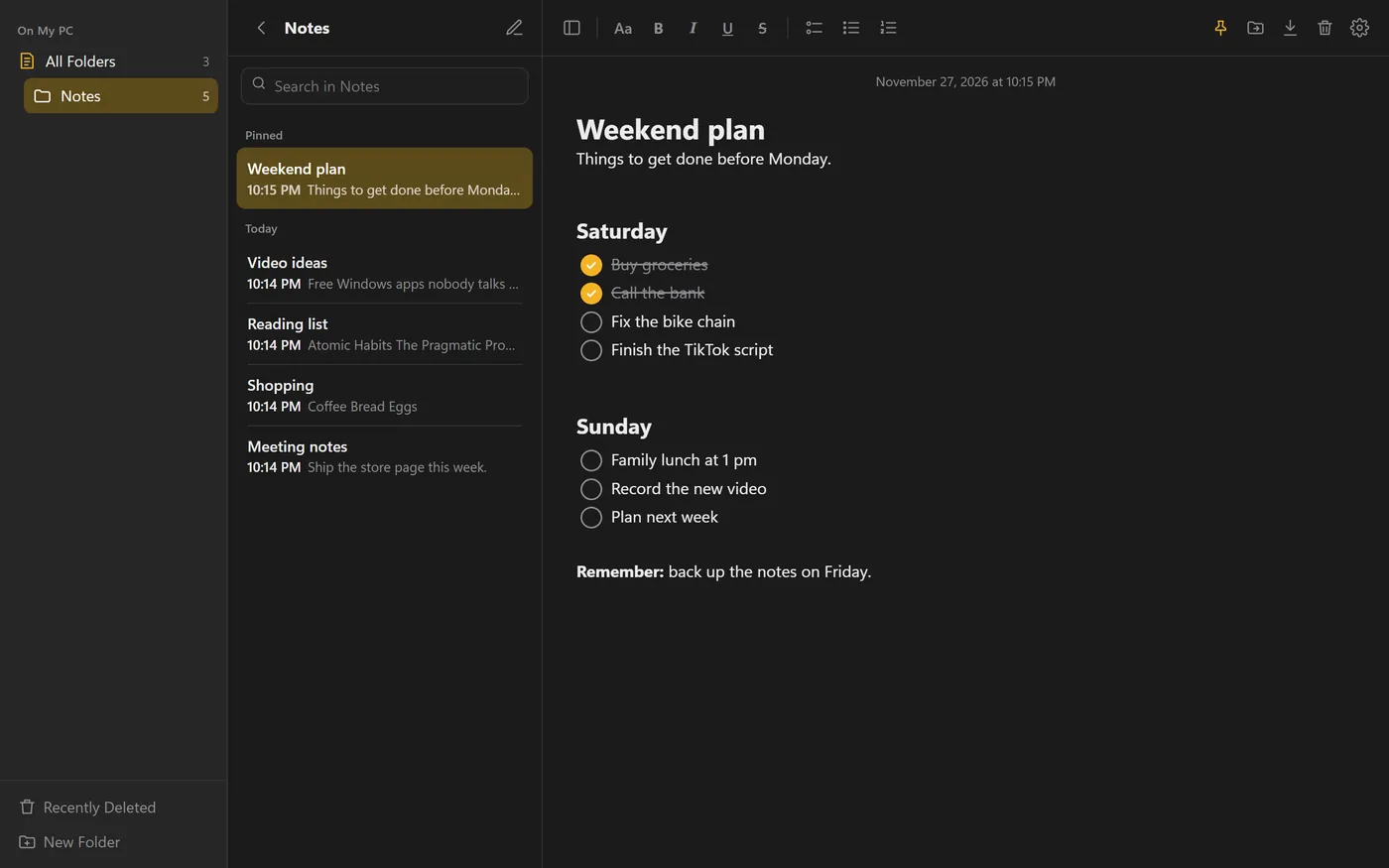
Light and dark mode follow your Windows setting.
What it does
- Folders that stay tidyOpen a folder to see only its notes. Pin the ones you need most, and everything else is grouped by date.
- Checklists and listsRound tick-boxes, bullets and numbers, Tab to indent. Titles, headings, bold, italic and more.
- See-through modeMake the window transparent, as much or as little as you like, and keep reading what's behind it.
- Float as a small circleShrink Notes to a glass circle that stays on top. Click it to bring your notes back.
- Focus modePress Ctrl+L to hide everything except the note you're writing.
- Paste your wayCtrl+V keeps the formatting you copied; Ctrl+Shift+V pastes plain text.
- Search everythingFind any note in an instant, from any folder.
- Saves as you typeBack up all your notes to one file, and restore them on another PC.
How to install
- Download Notes-1.7.0.zip on your Windows PC.
- Open your Downloads folder, right-click the zip and choose Extract All, then Extract.
- In the new folder, double-click Install Notes. If Windows says "Windows protected your PC", click More info, then Run anyway. It shows this for files downloaded from the internet.
- Click Next, Next, Install, and Yes when Windows asks for permission.
Notes is then in your Start menu. Press Ctrl+Alt+N to open it from anywhere.
Handy shortcuts
| Ctrl+N | New note |
| Ctrl+F | Search |
| Ctrl+Shift+L | Checklist |
| Ctrl+L | Show only the note |
| Ctrl+, | Settings, backup and restore |
Good to know
- Your notes
- Stay on your PC, never online
- Needs
- Windows 10 or 11 with Microsoft Edge (already built in)
- Uninstall
- Settings > Apps > Installed apps > Notes
- Opens
- .txt, .md and other text files as new notes